Dial for Help customer app
From installing the app to a placed booking, step by step.
-
Step 1
Download the app
Open the download page on an Android phone, tap Download customer app, then install it.

-
Step 2
Open the app
Go through the welcome screens, tap Get Started and allow location.

-
Step 3
See the services
Home shows the services available in the customer's area.

-
Step 4
Tap Book Now
Every service card has a Book Now button.

-
Step 5
Sign in once
Only an email and a password. A new customer's account opens from this same form.

-
Step 6
Mobile number and address
Checkout opens next. Enter a mobile number and the service address.

-
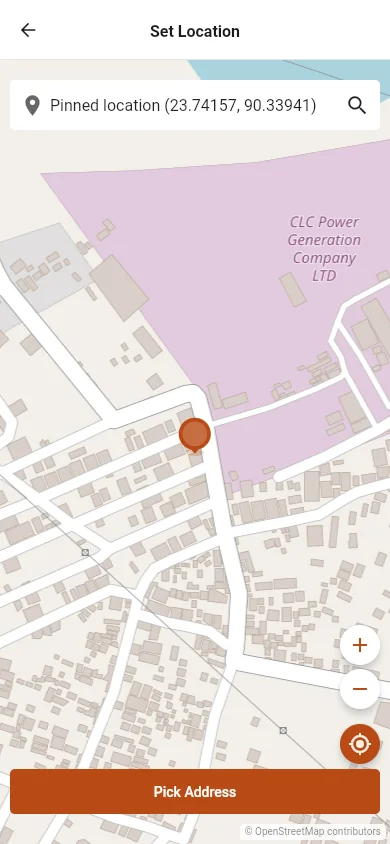
Step 7
Set the location
Move the map to the customer's place and tap Pick Address.
-
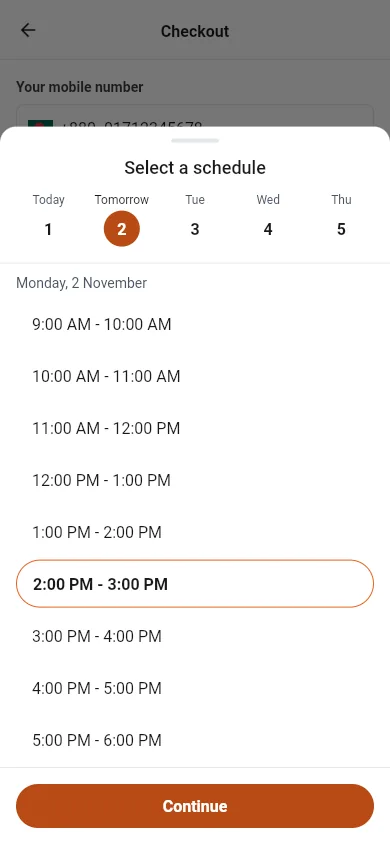
Step 8
Choose a time
Keep As soon as possible, or pick a day and a time.
-
Step 9
Confirm the booking
Check the details and tap Confirm Booking.

-
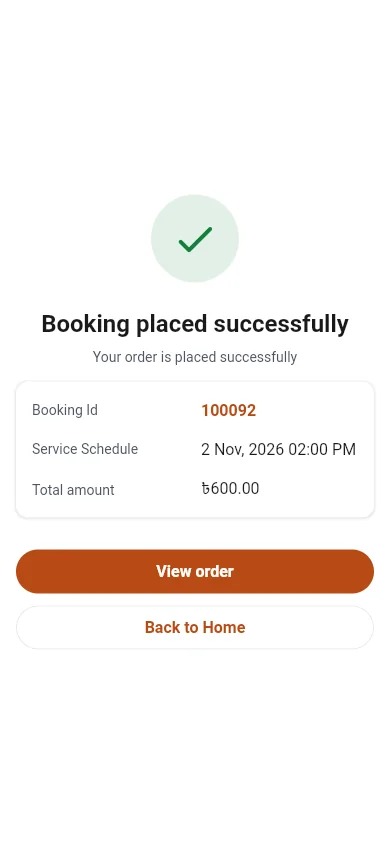
Step 10
Booking placed
The customer gets a booking ID right away.
Screens are from the app's web version at phone size, built from the same code as the Android app (version 1.0.5). Steps 1 to 5 are from the live system. Steps 6 to 10 use sample data on the test server.